
Brace
A native JSON editor for Mac
Explore JSON as a tree, edit the source beside it, and move confidently through large files—with search, formatting, parse feedback, and Quick Look.

Requires macOS 14 or later
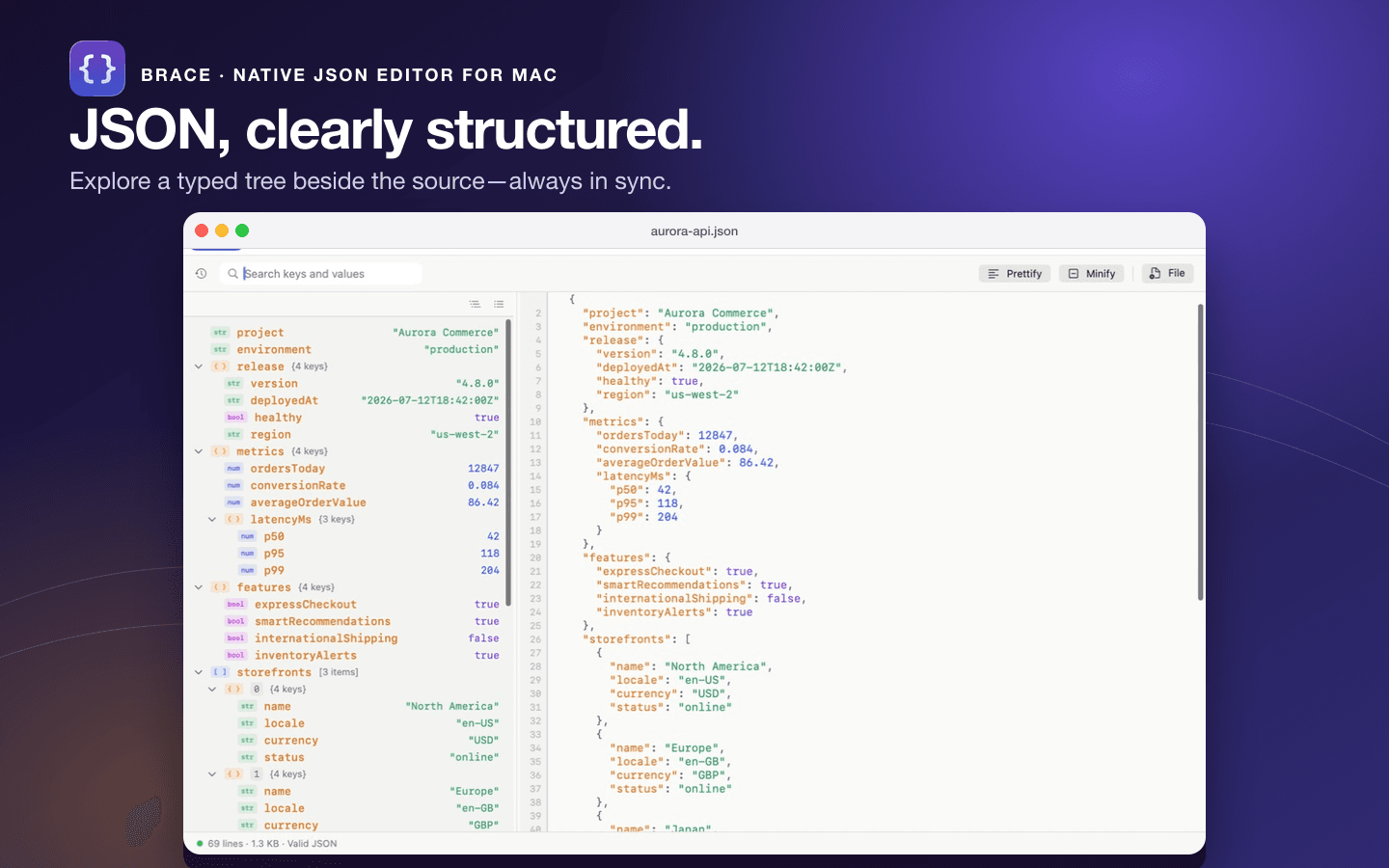
JSON without losing sight of its structure
Explore and edit
- Expand and collapse objects and arrays
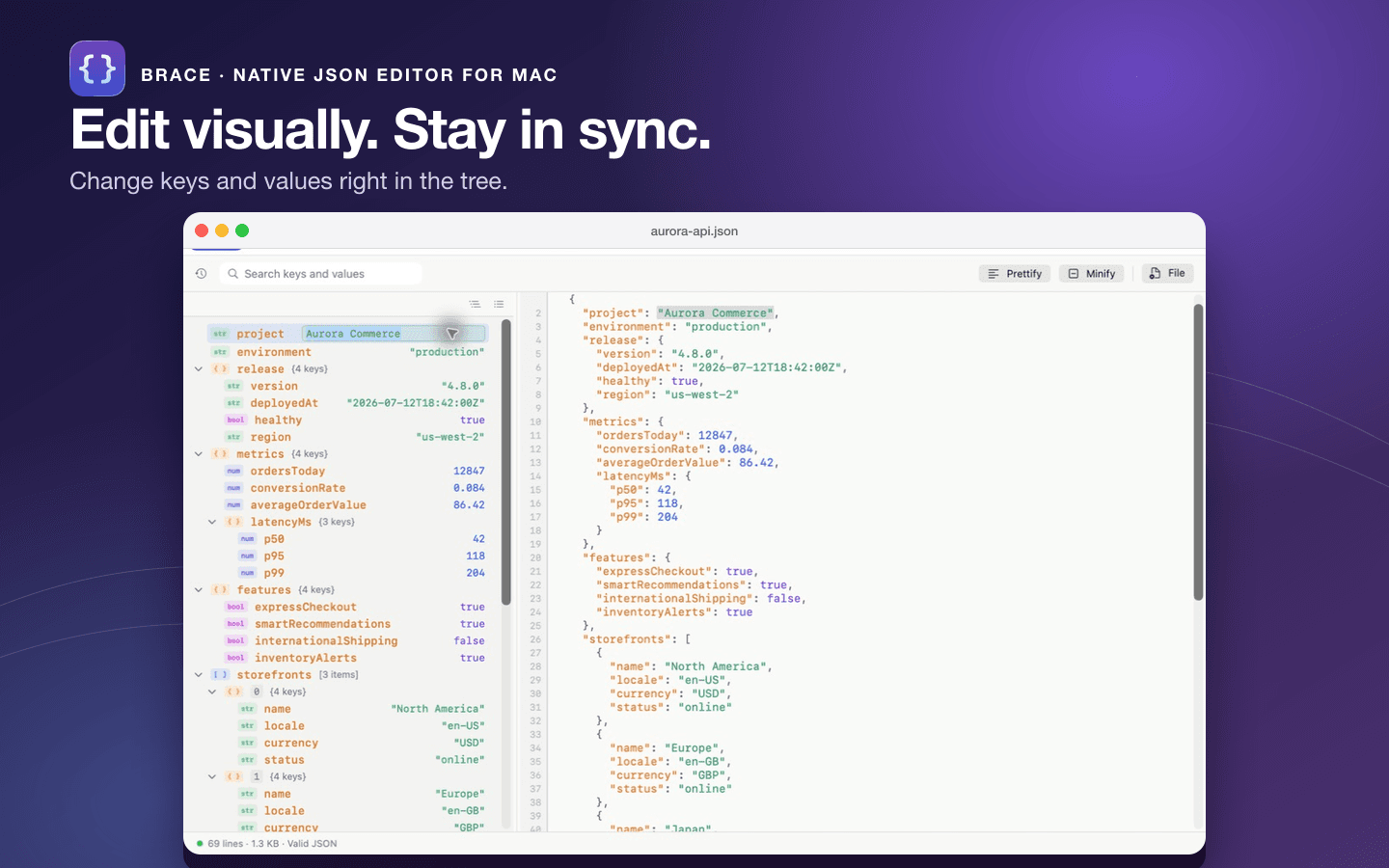
- Edit keys, strings, and numbers directly in the tree
- Toggle booleans with a click and delete nodes from the context menu
- Select a tree node to jump to its source, or place the cursor in the source to highlight the matching node
Find and format
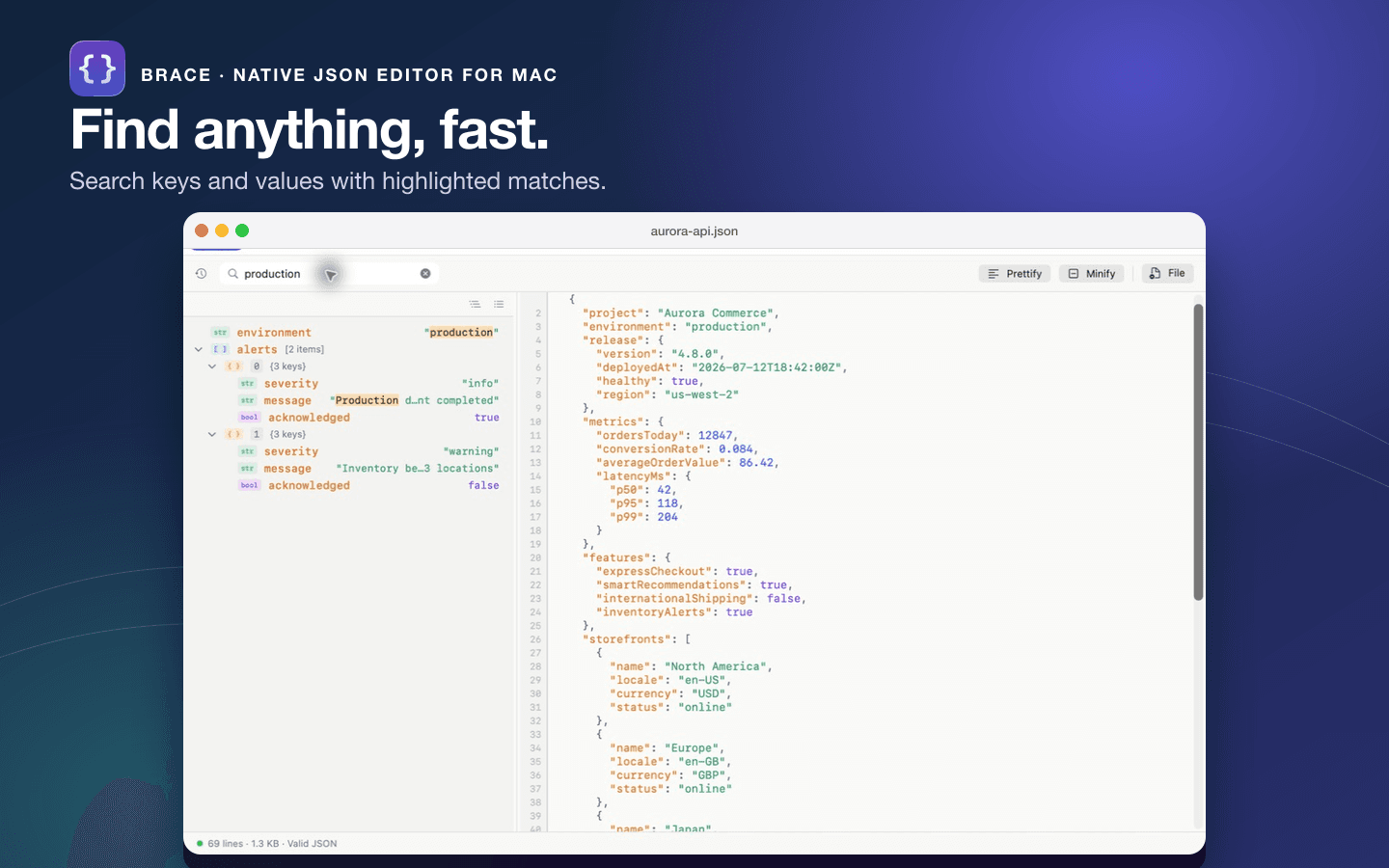
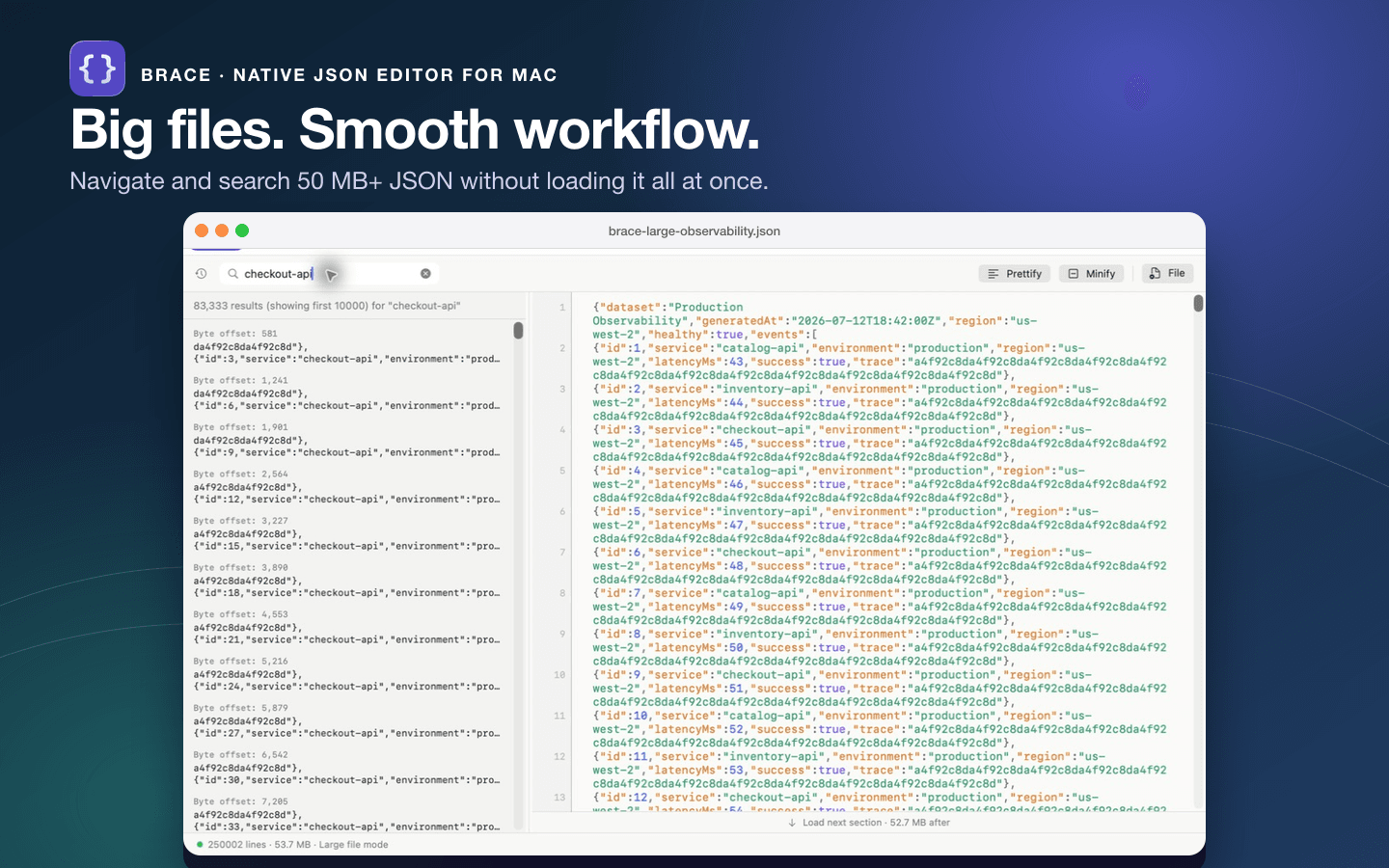
- Search across keys and values, with matches highlighted
- Prettify or minify from the toolbar or with keyboard shortcuts
- Choose your indentation width and editor font size
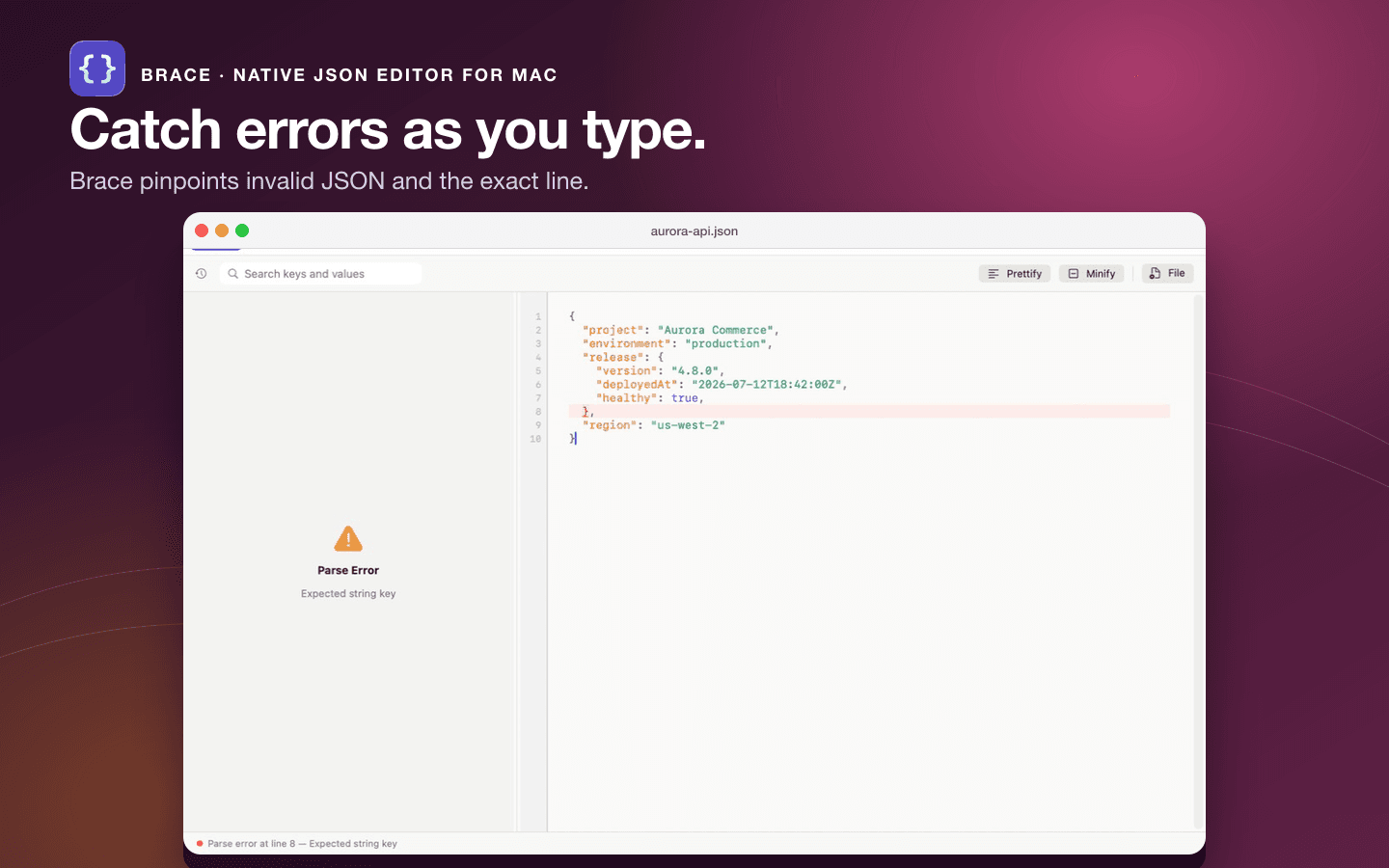
- See line numbers, syntax highlighting, document size, line count, and JSON parse status
Built for real-world files
- Familiar macOS document workflows for opening, editing, saving, and undoing changes
- A dedicated large-file mode for documents 50 MB and up, loading source sections on demand
- Recent files and in-progress drafts always within reach
- A Quick Look extension for previewing .json files right in Finder
See it in action
Support
Getting started
- Open Brace and create a document, or open a .json file from Finder.
- Use the tree on the left to explore objects and arrays.
- Use the source editor on the right for direct text editing.
- Select a tree item to jump to its source. Placing the cursor in the source highlights the matching tree item.
Keyboard shortcuts
| Prettify | ⇧⌘F |
| Minify | ⇧⌘M |
| Find | ⌘F |
| Toggle Recent Files | ⇧⌘R |
Common questions
Does Brace upload my JSON files?
No. Document parsing, editing, search, and formatting happen locally. Brace uses Firebase Crashlytics for crash and diagnostic reports, but does not attach JSON document contents to those reports. See the Privacy Policy for details.
Why does the tree show a parse error?
The source is not currently valid JSON. The status bar shows the affected line and parser message. Correct the syntax and the tree will update after parsing completes.
Does Brace validate JSON Schema?
No. Brace validates JSON syntax and reports parse errors, but it does not currently validate documents against a JSON Schema.
Can I add or reorder tree nodes?
Brace currently supports editing and deleting existing nodes. Adding or reordering nodes should be done in the source editor.
Get in touch
brace@andylia.ngFor help, bug reports, feedback, or feature requests. When reporting an issue, include your Brace version, macOS version, the steps that led to the problem, and any error message. Do not send confidential JSON files—if a sample is needed, remove secrets and personal information first.